


Emoji Battery: Status Bar Icon
4.540.00 Reviews
App Specs
- Version
- 1.3.2
- Updated On
- License
- Free
- Downloads
- 500,000+
- Developer
- TRUNGHIEUCOM
- Categories
- Personalization
- Platform
- Android
Screenshots
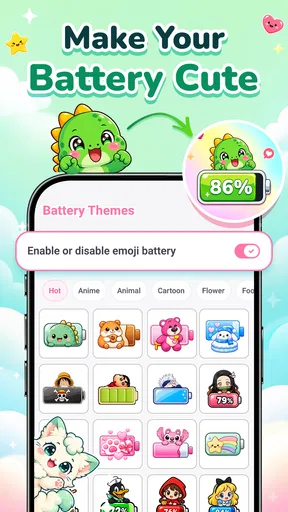

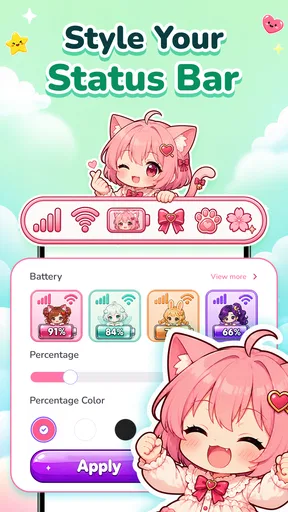
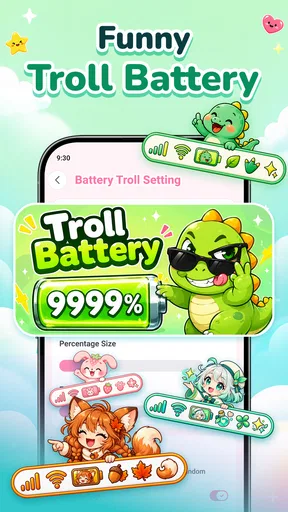

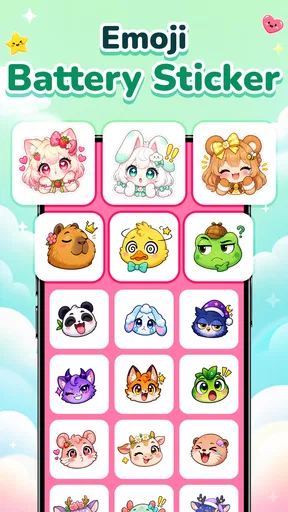

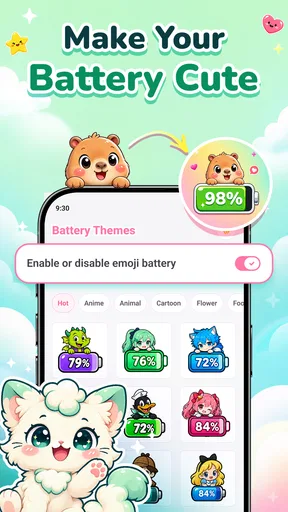
 Analysis by AppCompare
I like small personalization apps best when they change something I see all day without turning the phone into a project. Emoji Battery: Status Bar Icon is built around that idea: it lets you give the battery indicator a more playful look, using emoji-style icons, stickers, and pet imagery. The appeal is easy to understand, but status-bar changes can be affected by phone settings and Android’s own interface. I’d approach it as a simple visual customization, with a little patience for setup rather than expecting every device to behave identically.
Making a small status-bar change work
I’d start by treating a missing or hard-to-read icon as a small diagnosis rather than a reason to change several phone settings at once. Compare the selected design with the standard battery symbol, then check whether a recent theme or display change coincided with the difference. That gives you a useful baseline before deciding whether the issue is the design, the phone’s status bar, or simply a matter of contrast.
Where setup can feel less obvious
A battery symbol sits in a crowded, compact part of the screen. Even a cute design has to remain recognizable at a glance, and it may look different against a light or dark background. That’s the first practical trade-off: a more expressive icon can make the phone feel personal, but a plain battery indicator is usually easier to read quickly.
When an icon doesn’t appear as expected, I wouldn’t immediately assume the app is broken. First, check whether the selected design is easy to distinguish at the size of a status-bar symbol. Then look at the phone’s own status-bar and display settings; manufacturers can arrange or style that area differently. If you recently changed a theme or other appearance setting, compare the result before and after switching back to a familiar setup.
The app is called Emoji Battery, and its purpose is focused: personalize the battery indicator rather than redesign the entire phone. That narrow scope is useful if you want a small visual flourish, but it also means this is not a substitute for a broader icon pack, launcher, or system-wide theme. I’d choose it for the battery area specifically, not as a complete makeover tool.
Checks I’d make before settling on a design
I’d begin with the simplest available look, confirm that it is visible during ordinary phone use, and only then try more decorative options. This gives you a baseline. If the basic indicator is visible but a particular sticker or pet design is hard to pick out, the issue may be contrast or visual scale rather than setup. Choosing a less busy option can be the better fix than repeatedly changing unrelated settings.
It also helps to judge the icon in the situations where you actually glance at your phone: on the home screen, while an app is open, and under your usual brightness level. A design that looks charming in a selection screen may be less practical when reduced to a tiny symbol. I’d favor a clear silhouette if I rely on quick battery checks, and save more decorative choices for a phone where appearance matters more than instant recognition.
Worth Reading Before You Choose

Flipboard Shows What News Apps Must Do Beyond the Feed

Switching to Android Auto Means Rethinking Your Driving Routine

Google Calendar Makes a Crowded Week Easier to Manage

Ludo King Makes the Most of the Minutes Between Plans

Baby Panda World Brings Quick Play to Modern Phones, but Its Game Library Feels Busy

ESPN’s Live Game View Makes Following Close Games Easier
For readers wondering whether this is meant for a particular kind of phone, it is an Android personalization app. Its minimum operating-system requirement is Android 7.0, and the current release is version 1.3.2. The developer is TRUNGHIEUCOM. Those details make compatibility an easy first check: if your device runs an older Android version, this is not the right fit.
Recovering when the change seems to disappear
If the custom look vanishes after you leave the app or restart your phone, take a calm, reversible approach. Reopen the app, check the design you selected, and see whether the phone’s status-bar appearance has changed. If you use a device theme or display customization, temporarily return to a familiar theme and check again. Changing one thing at a time makes it much easier to tell what affected the result.
I’d avoid jumping straight to drastic fixes such as resetting the phone. Start with ordinary checks: close and reopen the app, review the relevant appearance settings, and restart the device if the interface itself seems stuck. If the problem began after changing several settings, undo the most recent change first. This kind of step-by-step test is more useful than making multiple adjustments at once and then not knowing which one mattered.
Another sensible habit is to keep expectations modest about persistence. A phone’s interface can be influenced by its own software and manufacturer choices, so a visual customization may not behave exactly the same across devices. If a particular design is inconsistent, try another option and check whether the issue follows the design or affects every choice. That simple comparison can help separate a specific visual mismatch from a broader setup problem.
When the app may not be the cause
Sometimes the battery icon is difficult to see because of the phone’s wallpaper, display theme, brightness, or the way the manufacturer lays out the status bar. If other status-bar symbols also look crowded or low-contrast, the problem is probably broader than this app. I’d first check the phone’s general display and theme choices instead of treating every visual quirk as an app failure.
There is also a difference between wanting a decorative battery marker and wanting detailed battery monitoring. This app’s appeal is visual personalization; it should not be chosen on the assumption that it provides advanced battery diagnostics, charging forecasts, or power-saving controls. If your main concern is understanding battery health or reducing drain, a dedicated battery utility or the phone’s built-in battery settings would be a more suitable place to start.
Similarly, anyone who prefers a clean, standard interface may find that even a well-chosen emoji feels like clutter. The original system indicator is often the most practical choice for people who need maximum clarity, use accessibility features that depend on strong visual contrast, or simply want the status bar to stay unobtrusive. I see that as a legitimate reason to skip this app, not a failure to appreciate customization.
How it fits among personalization options
Compared with changing a wallpaper, a launcher, or a full icon set, adjusting one small battery symbol is a lighter-touch change. It is a good match for someone who wants a bit of personality without reorganizing the home screen. On the other hand, people who want every part of the interface to share one coordinated style will likely get more value from a broader customization option.
The strongest use case I can picture is a phone that already works well but feels visually plain. A playful battery marker can make routine glances feel a little less generic without requiring a new layout. For example, if I’m checking my phone repeatedly during a busy day, a distinctive icon could make that corner feel more personal. I would still choose a design that stays legible, especially when I’m checking quickly rather than admiring the screen.
It is free and rated for Everyone, so it is approachable as a casual personalization choice. The app has an average rating of 4.5 from around 1.5 thousand ratings, with roughly 40 written reviews, and it has been installed over 500 thousand times. Those figures suggest that the idea has found an audience, but they don’t tell me whether a particular phone’s status bar will suit every design. I’d treat the app’s fit on my own device as the deciding factor.
Who I’d recommend it to
I’d recommend giving it a try if you enjoy small, visible custom touches and want the battery area to feel less ordinary. It is especially suited to someone who prefers a quick visual change over a complete theme overhaul. I’d also suggest comparing a few styles in everyday conditions instead of choosing only by how cute they look in a preview.
I’d skip it if you are looking for battery-health information, system-wide design control, or a guaranteed identical appearance across different Android phones. It is also not the best choice if you depend on a conventional, instantly readable battery symbol and don’t want to trade clarity for decoration. In those cases, sticking with the phone’s standard indicator—or using a broader tool for a different kind of customization—makes more sense.
A practical verdict for everyday use
My overall view is that Emoji Battery: Status Bar Icon is a focused, low-commitment way to add character to one small part of an Android interface. The most useful approach is to check compatibility, start with a clear design, and test it in the lighting and apps you use most. If it doesn’t appear as expected, compare settings one at a time before blaming the app or making major changes.
I wouldn’t install it expecting a battery-management tool or a complete phone makeover. I would consider it if I wanted a playful status-bar detail and was willing to choose visibility over the most elaborate look. For that specific purpose, it has a clear appeal; just remember that the phone’s own interface can influence how the result looks. If a simple, readable battery symbol matters more to you than personalization, the standard option remains the better choice.
A sensible way to fit it into a routine
One useful approach is to treat the icon as a quick visual cue, not as a reason to check the phone more often. If I were trying it during a workday, I’d choose a design that reads clearly during brief glances, then leave it alone for a few hours instead of continually switching styles. That makes the decision practical: does the marker feel pleasant and easy to recognize in normal use, or does it distract me from the information I actually need?
This also helps answer whether a decorative battery icon is worth keeping. If you enjoy matching small details to a wallpaper or personal taste, the customization can make a familiar screen feel more yours. If your phone is used in bright outdoor light, at a distance, or while you are moving, prioritizing a simple shape is the safer choice. The right design is the one that still serves its everyday purpose when you are not looking closely.
Choosing between a small tweak and a full theme
For someone who likes changing wallpapers but does not want to risk a new launcher layout, this kind of focused adjustment occupies a useful middle ground. It is more specific than changing the background and less sweeping than replacing the home-screen experience. I’d see that as its main practical distinction from other personalization choices: it can add a little character without asking you to rethink how you navigate the phone.
That narrow focus is also the limit. If your goal is a consistent visual identity across icons, widgets, menus, and the status bar, a single battery customization will only address one corner. A full theme or launcher is a better match for that project, while the built-in battery symbol is better for anyone who values uniformity and maximum simplicity. Picking the scale of change first can save time and prevent disappointment.
What I’d check after installing
After choosing a style, I’d take a moment to compare it with the phone’s ordinary battery display and make sure I can still interpret it without effort. I’d also check it with a couple of different apps open, since the status bar may sit against different backgrounds depending on the screen. If the result is difficult to distinguish, changing the design is a more proportionate response than altering several phone settings at once.
If the design stops showing later, I’d note what changed just before that happened: a theme switch, a display adjustment, or a restart. Repeating the same basic check after changing one setting at a time is a straightforward way to narrow down the cause. It won’t guarantee identical behavior on every phone, but it avoids the common trap of making several fixes at once and losing track of what helped.
Final recommendation
I’d put this app on the shortlist for someone who wants a small, playful detail rather than a feature-heavy utility. It makes the most sense when you can spare a few minutes to test a design, are comfortable judging visibility on your own screen, and understand that Android interfaces can vary. For a person who enjoys personal touches, that is a reasonable trade for a modest change in a place they see often.
For anyone who needs precise battery information, prefers the cleanest possible status bar, or wants a complete coordinated makeover, I’d choose a different solution. But if a more expressive battery marker is the whole point, Emoji Battery: Status Bar Icon offers a focused way to try that idea without turning customization into a major undertaking.
Pros
- Adds a customizable emoji to the status bar to show battery level at a glance.
- Offers a playful alternative to the standard battery indicator.
- Makes it easy to notice when your battery is running low.
- The emoji-based display is simple to understand without opening an app.
- Useful for personalizing the look of your phone’s status bar.
Cons
- Status bar appearance can vary across Android devices and system versions.
- Some Android skins may limit or alter how the battery icon is displayed.
- Emoji designs may look different depending on your device’s font.
- The indicator may be less precise than a numeric battery percentage.
- Requires notification or status-bar access to display its indicator.
FAQs for Emoji Battery: Status Bar Icon
What does Emoji Battery: Status Bar Icon do?
Emoji Battery: Status Bar Icon is a customization app that represents your device’s battery level with an emoji-style indicator in the status bar. It is intended to make battery status more visually distinctive than a standard icon. The exact appearance and available emoji options can vary by app version and device, so check the screenshots and listing details to confirm what is supported before installing.
How do I set up the battery emoji after installing the app?
Setup typically involves opening the app, choosing an available emoji or battery style, and granting any permissions it requests to display an indicator. Android versions and manufacturers handle status-bar customization differently, so the steps may not be identical on every phone. Review each permission prompt and the app’s instructions, and check whether your device requires additional settings for the indicator to remain visible.
Will Emoji Battery: Status Bar Icon work on my Android phone?
Compatibility depends on your Android version, device manufacturer, and the way your system manages status-bar icons and background apps. Some interfaces restrict custom indicators or may display them differently from the app’s examples. Before downloading, compare your device’s Android version with the requirements shown in the store listing. If the indicator does not appear as expected, consult the app’s settings and your phone’s notification or battery-management options.
Does the app drain battery or need to run in the background?
An app that keeps a battery indicator current may need to run a background service or receive system updates when the battery level changes. Its actual power use depends on how it is implemented and on your device’s background-process controls. Check the app’s battery usage after installation, and avoid disabling necessary background activity if you want the indicator to update reliably. The app itself does not improve battery life.
Is Emoji Battery: Status Bar Icon free, and what permissions should I expect?
Pricing, advertising, and optional purchases can change, so check the current store listing for the latest details before downloading. The app may request notification, display, or other permissions depending on how it shows the battery indicator and which features you use. Grant only permissions that make sense for the feature you want, and review the developer’s privacy information to understand what data, if any, is collected.


